
Using Google Slides to showcase student art and create an inviting online classroom

How do you teach art online??
Yup. This is a question I get asked all the time.
Many people assume that art isn’t something that can be taught online. But the reality is that online high school art isn’t so different than your standard high school art class.
There are, of course, differences. In my online class, for example:
Students work more independently, in a remote location and at their own pace.
Students are able to seek as much or as little guidance from me as they want, much as they would during work time in a traditional classroom.
Besides that, it’s almost exactly like a traditional classroom, but translated to a new context.
In my online courses, students work through online modules that teach major concepts in art. For example, in my visual art course, students go through slides, videos, and activities (some graded, some not) which teach the elements of art and principles of design.
After studying these concepts, students work through a variety of assignments designed to help them explore and demonstrate their mastery of content. They create physical and digital artworks and submit photos or files to me for grading and feedback.
One piece that sometimes can feel like it's missing in an online art course is the opportunity for students to collaborate with classmates.
It can be hard to see a student’s pride in their work in the online context. It can also be more challenging to foster a community in a classroom where students don’t see each other. In an art context, the loss of seeing what your peers are doing and the different ways they are interpreting an assignment is a shame, so it was really important for me as a teacher to create a space for students to share their work with one other.
Ideally, I wanted this to be a place where students could ask for feedback as well as show off pieces they’re proud of.
My solution?
As an online teacher, Google Slides been the answer to all my hopes and dreams. Using it is like making a collage, but my fingers don’t get sticky! Pretty much everything I post in my online courses is created in Slides. We’re talking:
Static announcements with resources: a slide I keep at the top of my course with basic info and links to the things they’re going to have to find pretty frequently: a convenient hub for some primary info and resources. It’s like a billboard I keep at the top of my “Announcements” page, which is the first thing students see when they log into my course.
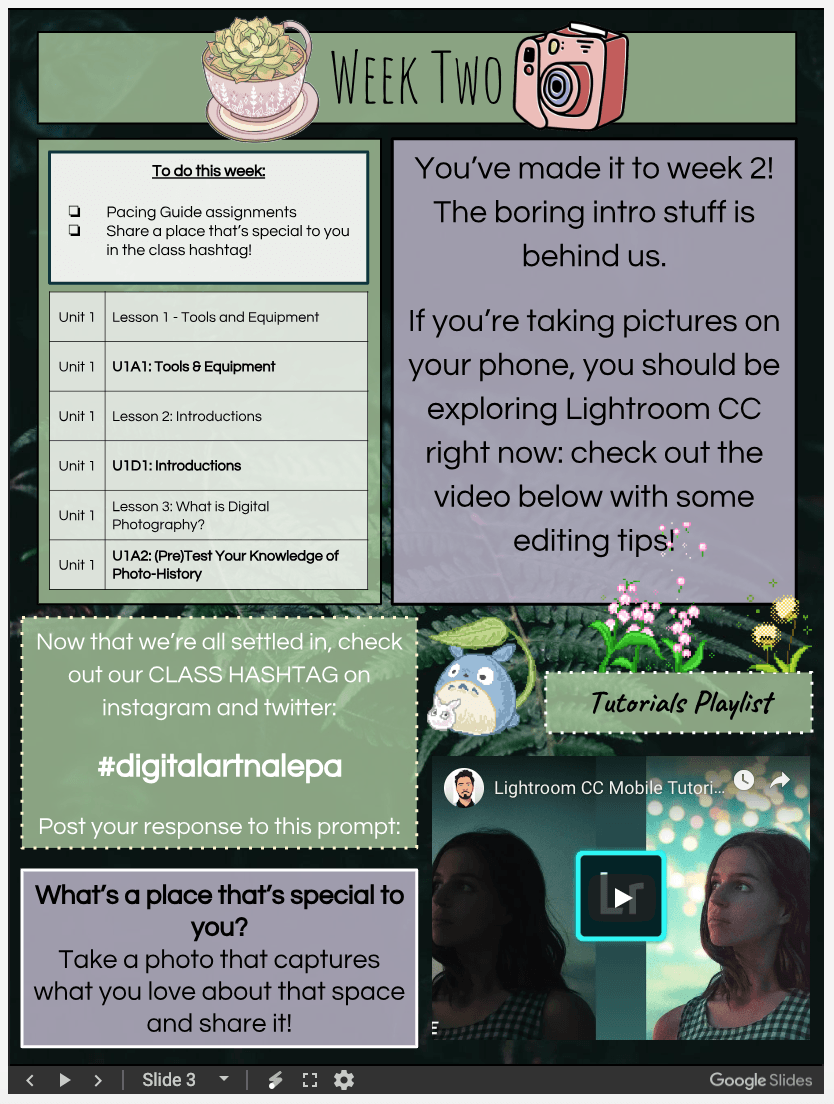
Weekly announcements with regular updates: a slide I give my students each week about what’s going on, what’s due, tips and tricks, and fun extra resources.This is the newspaper of my online classroom. It’s the Monday morning what-the-heck-is-going-on-this-week communication.
Tips for success: Slides I provide with extra content that I pop right into the main modules of the course, between a lesson and an assignment, where I want to reiterate or clarify something before students move on to a graded assignment. It’s a place I try to preemptively solve problems.
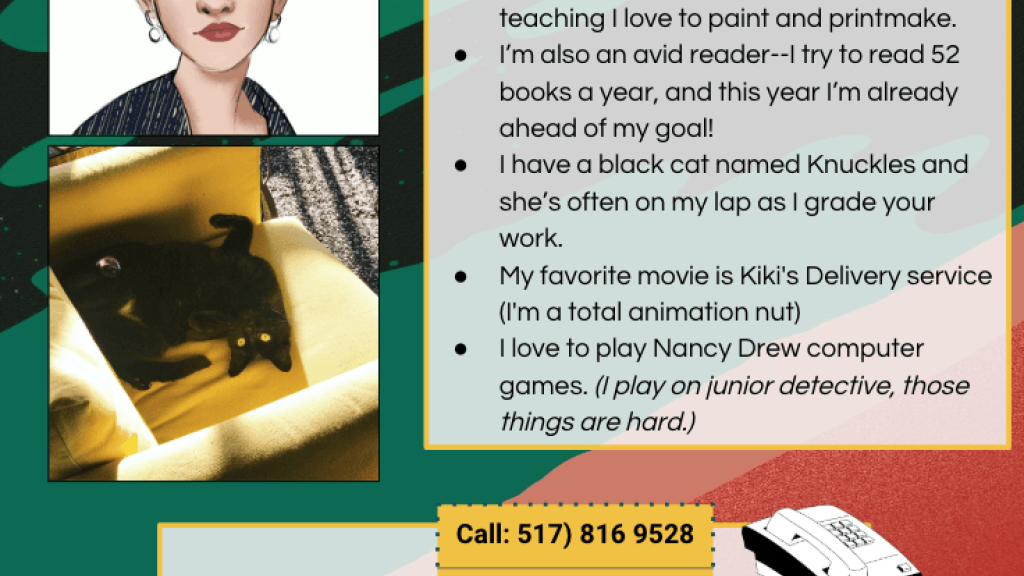
Course policies and general information. I use Slides for communication too. I send a letter called the Welcome Letter at the beginning of every course. It includes basic information, instructions for getting started, resources students will need, and much more.
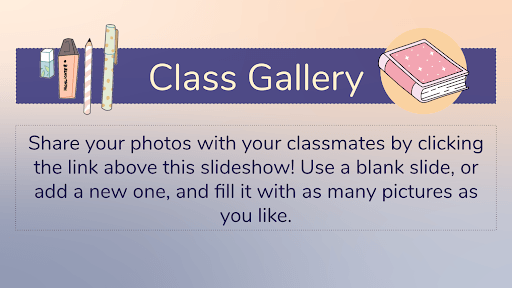
Collaborative slideshows where students can display their work. This is one of my favorite ways to use Slides, which I will explain in more detail below.
Why are Slides so important to my online art classroom?
I think one of the worst things a teacher (online or otherwise) can do is provide all their content in large blocks of text. This is pretty avoidable in a traditional classroom, but can be a temptation for time-strapped online instructors.
But here’s the thing:
I never want my students to log into my course and feel bogged down. I want them to open the course and be interested or curious to peek around at what’s there.
I want my course to be inviting.
This is why I use Google Slides to communicate in ways that aren’t “heavy” with huge blocks of dense text.
When it comes to my end of things, I also want to be efficient. If I create some awesome graphic for an assignment in my course, and then notice that I have a typo, I do not want to go back to the software where I made the graphic, edit it, re-download it, and then re-upload it to each section of my course.
That is a drag, and I am prone to mistakes.
I want things to be easily editable and to update in real time across any place they’re embedded. I want things to be housed in a single, easy to manage organization system. I want to have lots of editing options.
Thankfully, there’s a tool for that.
Here are a few reasons I prefer Google Slides to other image-creation tools:
They are always editable, unlike a static image file, meaning that I can go into slides and change something without deleting and re-uploading files.
They can host links.
You can embed videos and other content right into them easily, and
They’re super customizable.
Using Slides to showcase student artwork
One of my favorite ways to use Slides is for a Class Gallery, a place where students can showcase their artwork.
The best part? It’s not just me doing all the work and using the tool: It’s my students.
Now, students are sharing creations made on their own time as well as what they have made for class, which I love to see! In the future, I plan to adapt this slide format to allow for a comments area to further the conversation.
While we can’t always sit in the same room, I know my students are able to collaborate with their classmates, share ideas and be inspired and proud of their work by using something as simple as Google Slides.
Want to learn how to design Google Slides for your classroom? Check out this guide I wrote on best practices for designing slides. And guess what? You’ve got it: It’s in slide deck form!

Lauren Nalepa
Lauren is a graduate of Michigan State University, with a bachelor's degree in art education. Before joining Michigan Virtual in 2017, she student taught in Berkley, Michigan, with students in grades K-12. As an iEducator, she teaches Digital Arts and Art History/Appreciation, as well as other subjects in the humanities. She is passionate about arts education, literacy and teaching problem-solving and critical-thinking skills to the minds of the future. In her spare time, Lauren is an artist and an avid reader.
Related Posts
Everyone Has a Story
Learn how one Michigan educator helps students connect with each other and with the power of storytelling. Back when I began teaching...
The Power of the 5:1 Ratio: How Fostering Positive Interactions Can Transform Student Learning
The 5:1 ratio has completely changed my thinking about interactions in the classroom. It all started with a question about grading. After all, part of our jobs as teachers is to provide corrective feedback to help students grow. The 5:1 ratio helps to ensure that students can receive this feedback effectively. More importantly, however, it can help us be intentional about creating a classroom environment that centers our humanity.

Time for Teachers: Self-Assessment with Community Support as Individual Solutions
Educators often cite a lack of time as one of their most significant stressors. How can we help teachers find the balance necessary to feel satisfied in their jobs and meet their social and emotional needs? This third post in the Time for Teachers blog series will discuss the importance of a self-assessment in addressing individual problems and solutions teachers face. This is not to say the onus of addressing challenges should fall squarely on the shoulders of individual teachers. Teachers need a community of practice and support to help them identify problems they might face individually that could benefit from solutions that come from consulting with colleagues.

Time for Teachers: Agile Meetings and Short Pulse Surveys as Systemic Solutions
Educators often cite a lack of time as one of their most significant stressors. How can we help teachers find the balance necessary to feel satisfied in their jobs and meet their social and emotional needs? This second post in the Time for Teachers blog series will discuss two possible solutions that can help all educators save time while addressing needs to serve students and communities: agile meetings and short pulse surveys.

Tips and Tricks for Communicating with Parents and Students
During this time of remote learning, what are some best practices in the ways you communicate with your students and their parents? In this webinar, we’ll explore examples and tips for communication, specific tools and resources to aid this process, and lessons learned from applying these practices.

You Can Do This! Transitioning to Remote Teaching & Learning
Are you feeling overwhelmed about transitioning your classroom into a remote learning environment? In this webinar, we share simple strategies for getting started, communicating with students and parents, finding and delivering content, building relationships, and designing assessments. You can do this!